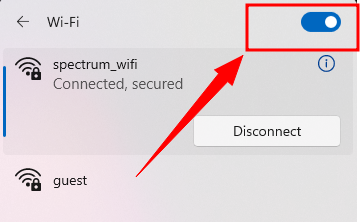
The first connection to the cellular network can take up to 10 minutes—please be patient.

🚀 Click here to activate the pre-instaled SIM card
page counter

How to Setup Your Portable Olax Router Hotspot

  • Your package includes the Router, a pre-installed SIM card, a charging cable, and a user manual. The Micro-SIM is already installed inside the device, so there’s no need to install it yourself.
  • The large plastic card shown in the picture is the SIM card carrier — it holds the SIM before it's punched out. It has the ICCID number which is required to activate the pre-installed SIM card.
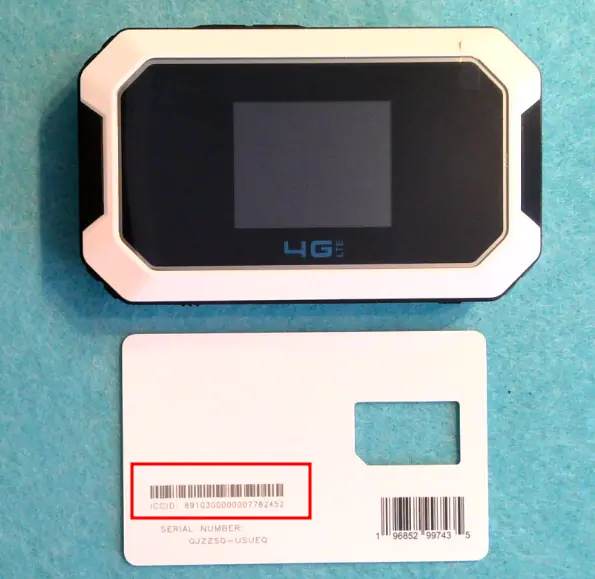
  • MT80 Router Package
  • Charge your device using the Type-C cable for a few hours. The cable is at the bottom of the box.
  • After charging your device, press the power button to turn on the device.
  • Once the device is powered on, click here to activate the pre-installed SIM card.
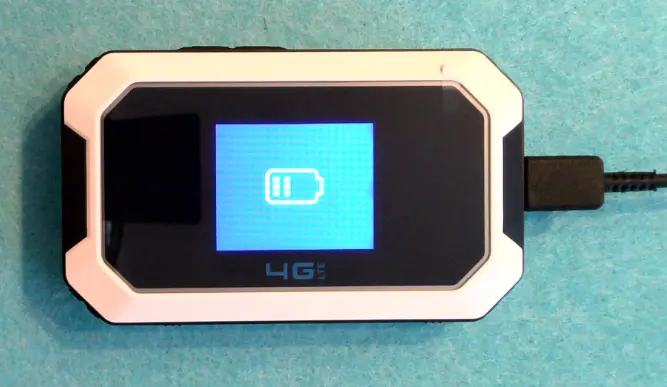
  • MT80 Olax Router Package
  • If you do not see the WiFi name, click the Wi-Fi icon on your computer, laptop, or other device.
  • Toggle your WiFi off and back on as shown in the figure to refresh the list of available networks. It might take a few tries before spectrum_wifi appears. Once you see it, connect to spectrum_wifi. The WiFi password can be found on the top of the box or on the back of the device.
  • It may take a few minutes for your device to connect to the cellular network after activation. If you still don't have an internet connection after activating your SIM card, try this: (1) Unplug the dongle. (2) Wait a few minutes. (3) Plug it back in to reset the connection.
  • Turn off WiFi
  • The hotspot is compact and portable—perfect for:
    • Traveling (hotels, airports, or remote locations)
    • Road trips or daily commuting (in your car)
    • Camping or RV living (powered via vehicle or solar)
    • Backup internet during outages at home or office
    • Temporary internet for pop-up shops or trade shows
    • Providing connectivity for smart home or IoT devices in remote areas
  • applications of the dongle